Typing mathematics in LaTeX is slow. A single page of handwritten notes full of integrals, matrices and subscripts can easily take half an hour to transcribe, and one missing brace is enough to break the whole document.
The good news is that you no longer have to type it all. Today you can take a photo of your notes, or upload a PDF, and get clean LaTeX code that compiles in seconds. This guide explains the options available, how to do it step by step with MathWrite, and how to get the most accurate results.
Quick answer
To convert an image to LaTeX, upload a photo or PDF of your math to an AI converter such as MathWrite. Choose the Professional model for handwritten notes or the Turbo model for PDFs that were already typeset in LaTeX, review the generated code next to the compiled preview, and copy it or open it directly in Overleaf. The whole process takes seconds.
Why typing math in LaTeX takes so long
LaTeX is the standard for writing mathematics at universities and in research, because it produces precise, beautiful formulas. The trade-off is that you have to describe every symbol in code: \frac{a}{b} for a fraction, \int_0^1 for an integral, \begin{pmatrix} … \end{pmatrix} for a matrix.
That is manageable for a short formula, but not for full pages of notes, exam solutions or chapters of a thesis. Most of the time goes into three things: looking up the command for a symbol you don't remember, aligning multi-line equations, and hunting down compilation errors.
4 ways to convert math to LaTeX
There are several ways to get from a formula on paper to LaTeX code, and they differ a lot in how much of the work they do for you:
| Method | Best for | Handwritten notes | Full pages / PDFs | Result |
|---|---|---|---|---|
| Typing it by hand | Short formulas you already know how to write | You transcribe everything | Very slow | Depends on your LaTeX skills |
| Symbol finders (e.g. Detexify) | Finding the command for a single symbol | One symbol at a time | No | A single command |
| Generic OCR (phone or scanner apps) | Regular text | Text yes, math structure no | Text only | Plain text: fractions, subscripts and matrices are lost |
| AI image-to-LaTeX converters (MathWrite) | Notes, exercises, papers and theses | Yes | Yes, multi-page PDFs | Complete LaTeX document that compiles |
If you only need one symbol, a symbol finder is enough. For anything longer than a line, an AI converter is what saves you the most time.
How to convert an image or PDF to LaTeX with MathWrite, step by step
MathWrite is an AI tool built specifically for mathematical content. It recognizes handwritten and printed notation (fractions, integrals, matrices, Greek letters, multi-line equations) and returns LaTeX that compiles.
- 1
Capture your notes
Take a photo with your phone or scan the page. MathWrite accepts JPG, PNG and GIF images and PDF files up to 10 MB. Make sure the page is flat, well lit and fills most of the frame.
- 2
Choose the right model
Use Professional for handwritten notes, scanned or blurry documents and complex formulas. Use Turbo for PDFs that were already typeset in LaTeX, such as papers or lecture notes downloaded from the internet: it converts dozens of pages in a few seconds, but it isn't designed for handwriting.
- 3
Upload and convert
Drag the file into MathWrite or click to select it. Images are converted in seconds; for multi-page PDFs you'll see a progress bar while each page is processed.
- 4
Review and edit the result
The LaTeX code appears next to a compiled preview, so you can compare it with the original at a glance. Fix anything you need directly in the editor and recompile to check it.
- 5
Export
Copy the code, open it in Overleaf with one click, or use the Convert tool to export it to Word (.docx), OpenDocument (.odt), HTML or Markdown.
Example: from handwritten notes to LaTeX
This is a real page of handwritten calculus notes on limits, exactly the kind of content MathWrite is built for:
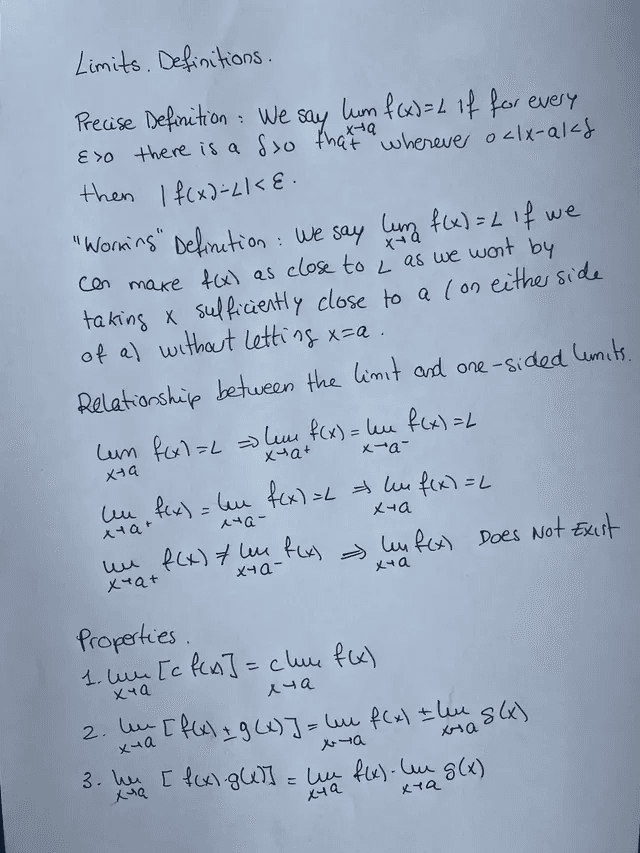
LaTeX for the whole page
\section*{Limits. Definitions}

\textbf{Precise Definition:} We say $\displaystyle\lim_{x\to a} f(x) = L$ if for every $\varepsilon > 0$ there is a $\delta > 0$ such that whenever $0 < |x-a| < \delta$ then $|f(x) - L| < \varepsilon$.

\textbf{``Working'' Definition:} We say $\displaystyle\lim_{x\to a} f(x) = L$ if we can make $f(x)$ as close to $L$ as we want by taking $x$ sufficiently close to $a$ (on either side of $a$) without letting $x = a$.

\subsection*{Relationship between the limit and one-sided limits}

\[
\lim_{x\to a} f(x) = L \;\Longrightarrow\; \lim_{x\to a^+} f(x) = \lim_{x\to a^-} f(x) = L
\]
\[
\lim_{x\to a^+} f(x) = \lim_{x\to a^-} f(x) = L \;\Longrightarrow\; \lim_{x\to a} f(x) = L
\]
\[
\lim_{x\to a^+} f(x) \neq \lim_{x\to a^-} f(x) \;\Longrightarrow\; \lim_{x\to a} f(x) \text{ Does Not Exist}
\]

\subsection*{Properties}

\begin{enumerate}
  \item $\displaystyle\lim_{x\to a} \bigl[c\, f(x)\bigr] = c \lim_{x\to a} f(x)$
  \item $\displaystyle\lim_{x\to a} \bigl[f(x) \pm g(x)\bigr] = \lim_{x\to a} f(x) \pm \lim_{x\to a} g(x)$
  \item $\displaystyle\lim_{x\to a} \bigl[f(x)\, g(x)\bigr] = \lim_{x\to a} f(x) \cdot \lim_{x\to a} g(x)$
\end{enumerate}Try it with a page of your own notes.
Convert an image to LaTeXTips for the most accurate conversion
- Use even light and avoid shadows across the page; natural daylight works best.
- Photograph the page straight on, not at an angle, and crop out the desk and margins.
- One page per image: very large or panoramic photos lose detail.
- Write symbols that are easy to confuse clearly: 1 and l, x and ×, u and v, 0 and O.
- For long PDFs typeset in LaTeX, use Turbo; for handwriting or scans, always use Professional.
- Check subscripts, superscripts and indices in the preview before exporting. It takes seconds and catches the occasional mistake.
- If your PDF is larger than 10 MB, split or compress it before uploading.
What you can do after converting
Once your notes are in LaTeX, MathWrite includes tools to finish the document without leaving the platform:
Format
Apply consistent academic formatting: line spacing, margins, and page and section numbering.
Translate
Translate the document into more than 20 languages while keeping every equation intact.
Templates
Restyle the document with academic, classic or minimal templates.
Convert
Export LaTeX to Word (.docx), OpenDocument (.odt), HTML or Markdown.
Suggestions
Get AI suggestions to improve the clarity, structure and accuracy of the text.
Presentations
Turn your document into a Beamer presentation, choosing the template (Madrid, Berlin, Warsaw…), color scheme and length.
Who converts their notes to LaTeX
Students
Hand in homework, lab reports and final-year projects with professional formatting, without retyping your notes.
Teachers and professors
Digitize exams, problem sets and lecture notes, and turn them into slides.
Researchers
Recover formulas from old papers, scans or whiteboard photos and drop them straight into your manuscript.
It is used in mathematics, physics, engineering and any other field that relies on scientific notation.
Frequently asked questions
Can I convert handwritten notes to LaTeX?
Yes. Choose the Professional model in MathWrite and upload a photo or scan of your notes. It recognizes handwritten formulas, text and multi-line equations and returns editable LaTeX code.
Can I convert a PDF to LaTeX?
Yes. If the PDF was originally created with LaTeX (a paper or downloaded lecture notes), use Turbo, which processes up to 100 pages at once on the Unlimited plan. For scanned or handwritten PDFs, use Professional, with up to 20 pages at once. More details in our PDF to LaTeX guide.
Is there a free image to LaTeX converter?
When you create a MathWrite account you get free credits to try conversions before paying. After that, the Unlimited plan costs $9.99 per month or $39.99 per year (€9.99 or €39.99 in the eurozone), with unlimited conversions.
Can I edit the result in Overleaf?
Yes. Every conversion can be opened in Overleaf with one click, or you can copy the code into any LaTeX editor.
Are my images stored?
No. Uploaded images are processed anonymously and are not stored on MathWrite's servers or shared with third parties.
What is the difference between Turbo and Professional?
Professional is recommended for handwritten math, complex formulas and unclear documents. Turbo is designed only for PDFs that were already compiled with LaTeX, and it is ideal for converting long documents in seconds.
Does it work for physics and engineering, not just math?
Yes. MathWrite works with any scientific notation that can be written in LaTeX, and it is used by students, professors and researchers in mathematics, physics, engineering and other sciences.
How accurate is the conversion?
With clear photos and PDFs typeset in LaTeX, the code is usually ready to compile with little or no editing. With very messy handwriting you may need to fix the odd symbol, which is why MathWrite shows the code next to a compiled preview.
Convert your first page to LaTeX now
Create your account and try MathWrite with your own notes. It takes less than a minute, and you'll see your page as LaTeX code in seconds.
Start Converting for FreeTrusted by 20,000+ academics worldwide